
Guide
How to filter and edit your medication list
On the Meds list you filter by category, open a medicine with Edit, then tap Save.
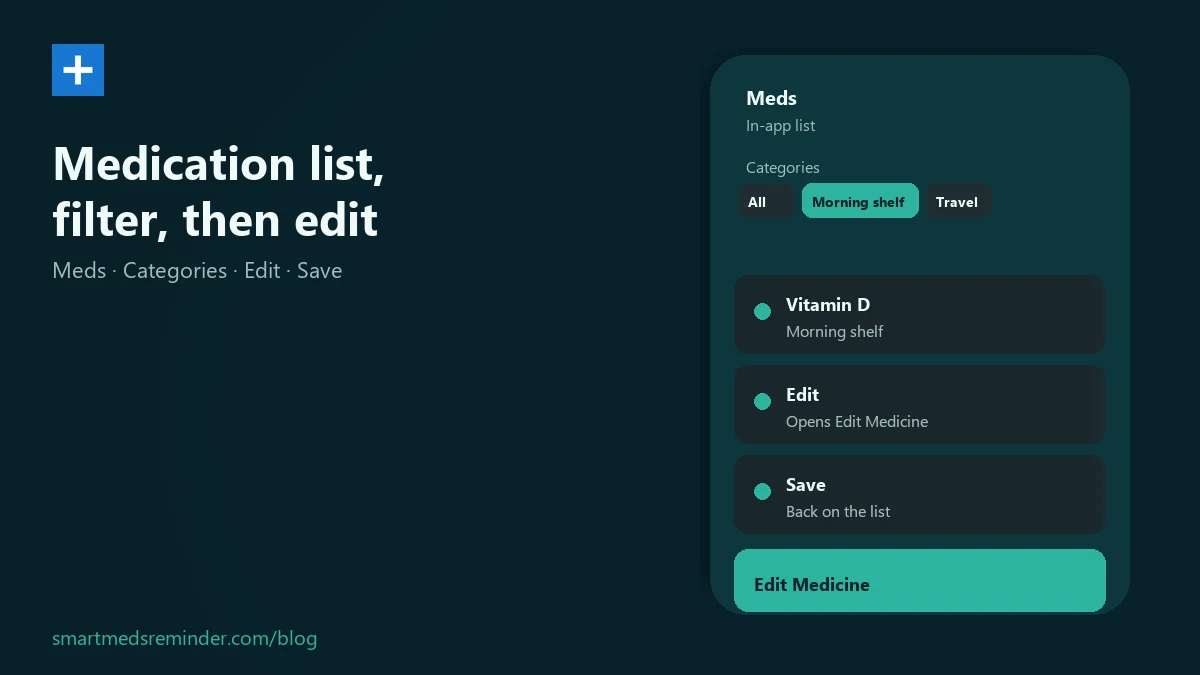
Steps on the Meds screen
- Open the app. The home list is Meds.
- Under Categories, tap a category name to filter the list, or tap All to clear that filter.
- Medicines without a filled Dosage Amount do not appear in the Categories filter.
- Under Filter by day of week, pick All days or a weekday. That control is separate from Categories.
- On a medicine card, tap Edit. That opens Edit Medicine.
- Change the fields you need - for example Medicine name, Category, Description, or Dosage Amount - then tap Save.
You stay on the in-app list. This is not a backup file. If you need to export or restore data, use the backup medication reminder data guide instead.
New Category labels are in the custom medication categories guide. For first-time reminder setup, see medication reminder on Android.
Limitations
- This is list organization only - not medical classification or dosing advice.
- The Categories filter matches the exact Category text saved on each medicine.
- Creating or renaming category labels for many meds is covered in the custom categories guide.
Smart Meds Reminder is a medication reminder and log. It is not medical advice and does not replace a qualified clinician or pharmacist.
FAQ
Is this the same as backing up my medication list?
No. This guide is the in-app Meds list: filter, edit, and save. File backup lives under Settings → Export / Import - see backup medication reminder data.
How do I create category labels to filter by?
The Categories filter on the Meds list narrows already saved labels. To type and save new Category labels, see custom medication categories.
Can I also filter the list by day of week?
Yes. Under Filter by day of week, tap All days or a weekday.